Graduation live
without leaving OBS
Partiu Live connects OBS Studio to the platform. The stream goes live with one button, the class chat appears in a window next to the preview, and reactions, the leaderboard, and speaker names go on screen as scene sources. Operators do not need a second computer or a second system.
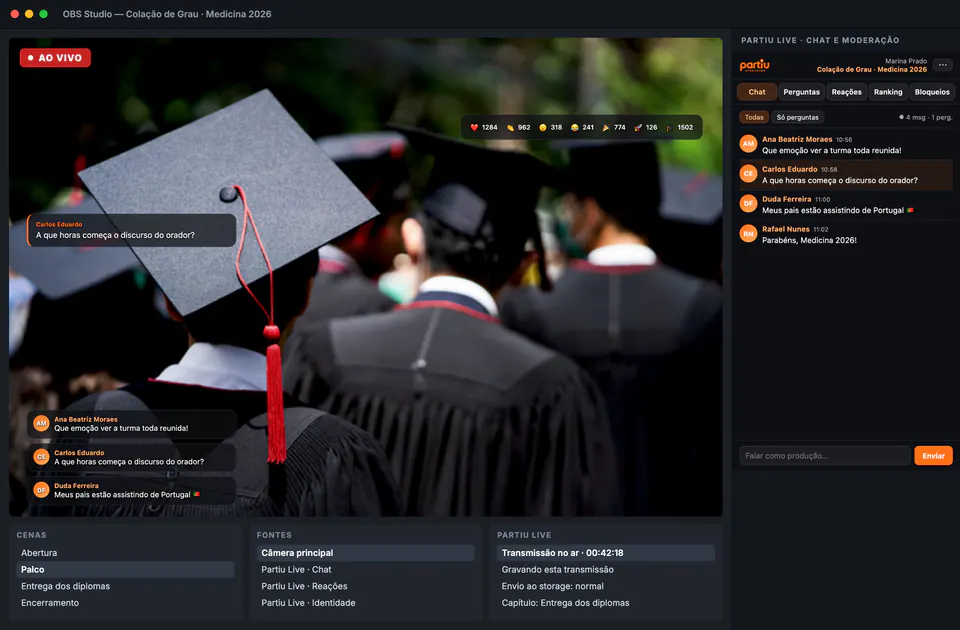
Everything your stream needs, inside OBS
Partiu Live does not replace OBS. It brings in what usually lives on another screen, in another browser, and often with another person.
Automatic ingest
The plugin fetches the stream address and key from the platform and applies them to OBS settings. Nobody copies keys around, and the key never appears on screen.
One button to start
One click opens the stream on the platform and tells OBS to go live, in the right order. If any step fails, the plugin rolls back instead of leaving a half-open stream.
Class chat next to the preview
A docked window inside OBS shows the whole chat in real time, with the viewer count and a filter that separates questions from everything else.
Speak as the production team
Operators reply in chat with their name and a production tag. The audience knows when the organizers are speaking, not just another graduate.
Real moderation
Delete messages, highlight them in the overlay, block disruptive viewers, and unblock them later. Blocks apply to one stream or all of them, and the muted list is always at hand.
Question queue
Mark messages as questions, order the queue, and put one on air at a time. The moderator curation survives even if the window has a hiccup.
Live reactions and leaderboard
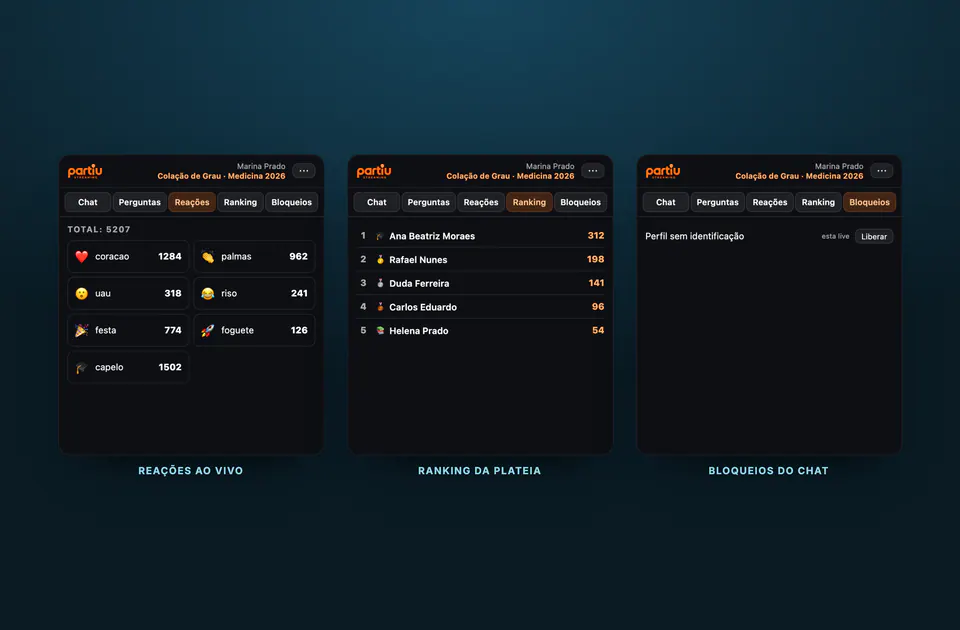
The seven audience reactions add up in real time, and the leaderboard shows who participates most, with graduation cap levels. Everything appears in the dock and can go on screen.
Stream health
Dropped frames, bitrate, storage uploads, and mismatches between what OBS thinks it is sending and what the platform receives. Problems show up before they become complaints.
Recording and chapters
Turn on stream recording and mark chapters with a shortcut during the event. When the video is ready, the chapters are already there.
The crew speaks, and the class listens
The dock sits next to the preview, and that is where the work happens. Operators read the whole chat, reply as the production team, delete what should not stay, highlight a message so it appears over the video, and block disruptive viewers. The blocks tab shows who is muted and restores their voice in one click.
- Full chat with viewer count and question filter
- Reply in chat as the production team, with your name
- Highlight, delete, and block without leaving OBS
- Blocks tab to unmute viewers
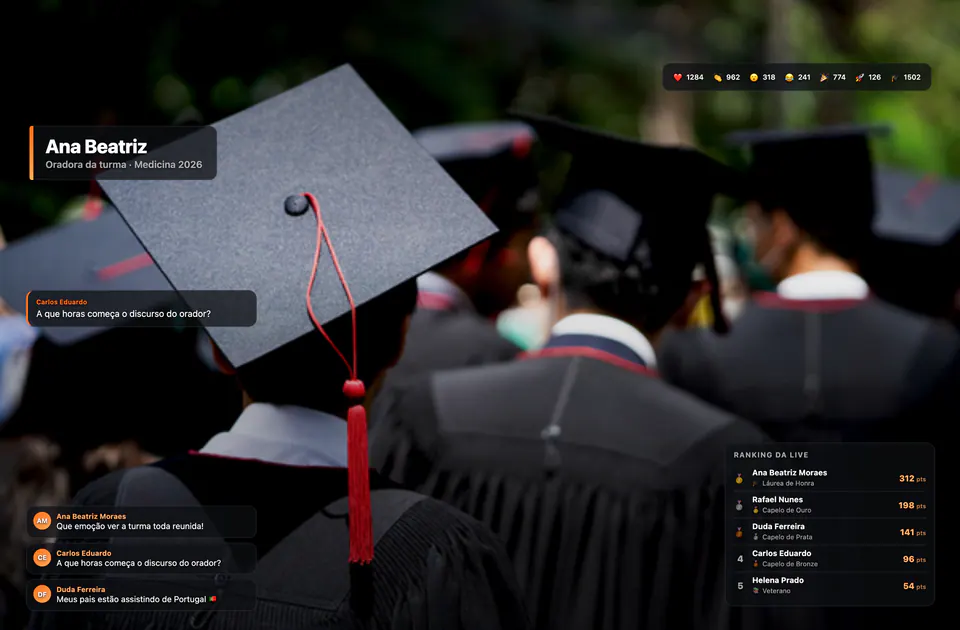
What the audience sends goes on screen
Five browser sources join the scene in one click: chat with the highlighted message pinned at the top, live reactions, a leaderboard of the most active viewers, name tags for whoever is on stage, and a countdown timer. Transparent backgrounds, ready to sit on top of the camera.
- On-screen chat with the highlighted message pinned at the top
- Live reaction totals and audience leaderboard
- Speaker name tag with caption
- Countdown timer for the opening and breaks
- Live audience panel: viewers, chat, and reactions
What the plugin handles on its own
Ingest address, stream key, recording, chapters, and checking what is going out on air: none of it is a manual task on event night anymore.
Two-click installation
Download the .zip, open it, and double-click the installer for your system. It registers the script and the chat window in OBS, with nothing to paste.
Base event scenes
Opening, stage, diploma presentation, and closing scenes ready to go, with the countdown on the opening scene.
On-screen name tags
Name and caption for whoever is on stage, with the option to hide automatically after a few seconds.
Scene timer
Countdown for the opening and breaks, matching the design of the other overlays.
On-screen stats
Current viewers, time on air, chat activity, and reactions. As a side panel or bottom bar, in the on-air scene or only on the presenter monitor.
Automatic archiving
When the stream ends, the recording becomes a platform video that the class can watch later.
Session ends with the window
Moderation access lasts only while the window is open. Nothing is stored in OBS settings.
macOS and Windows
The same plugin on both systems, with a dedicated installer for each.
Your own company account
Operators sign in with an admin dashboard or committee account. The company comes from the server, not from an on-screen field.
From setup to on air in 5 steps
Download and install
Download the .zip on this page, open it, and double-click INSTALAR-macOS or INSTALAR-Windows. The script and chat window go into OBS on their own.
The operator signs in
With the company account. The session lasts while OBS is open and is not stored anywhere.
Choose the stream
The list shows the company streams. Once you pick the day stream, the address and key are applied automatically.
Add overlays to the scene
One click adds chat, reactions, leaderboard, name tags, and timer as sources in the current scene.
Go live
The single button opens the stream and goes on air. From then on, the job is moderating chat and marking chapters.
The plugin is for the operator.
The stream belongs to the platform.
Partiu Live is the OBS end of a complete video service: the same stream is recorded, becomes on-demand video on Formatura TV, appears in the class app, and keeps that night's chat, reactions, and leaderboard. It is part of Partiu Formatura and comes with your company's subscription.
- Live streaming with class chat, reactions, and leaderboard
- Recording archived and published on Formatura TV
- Moderation by the production team, inside OBS
- Part of the complete platform for your graduation company
Download Partiu Live 2.3.0 · macOS and Windows · OBS Studio 28 or newer. Anyone running the night remotely uses Partiu Producer.